
QR Code Examples You Can Scan, Download, and Test
Every code below is real — scan it with your phone, check the payload, and download it as an SVG. The tool right here is a free QR code generator, so you can make and test your own in the same place.
Scan or download a sample QR code
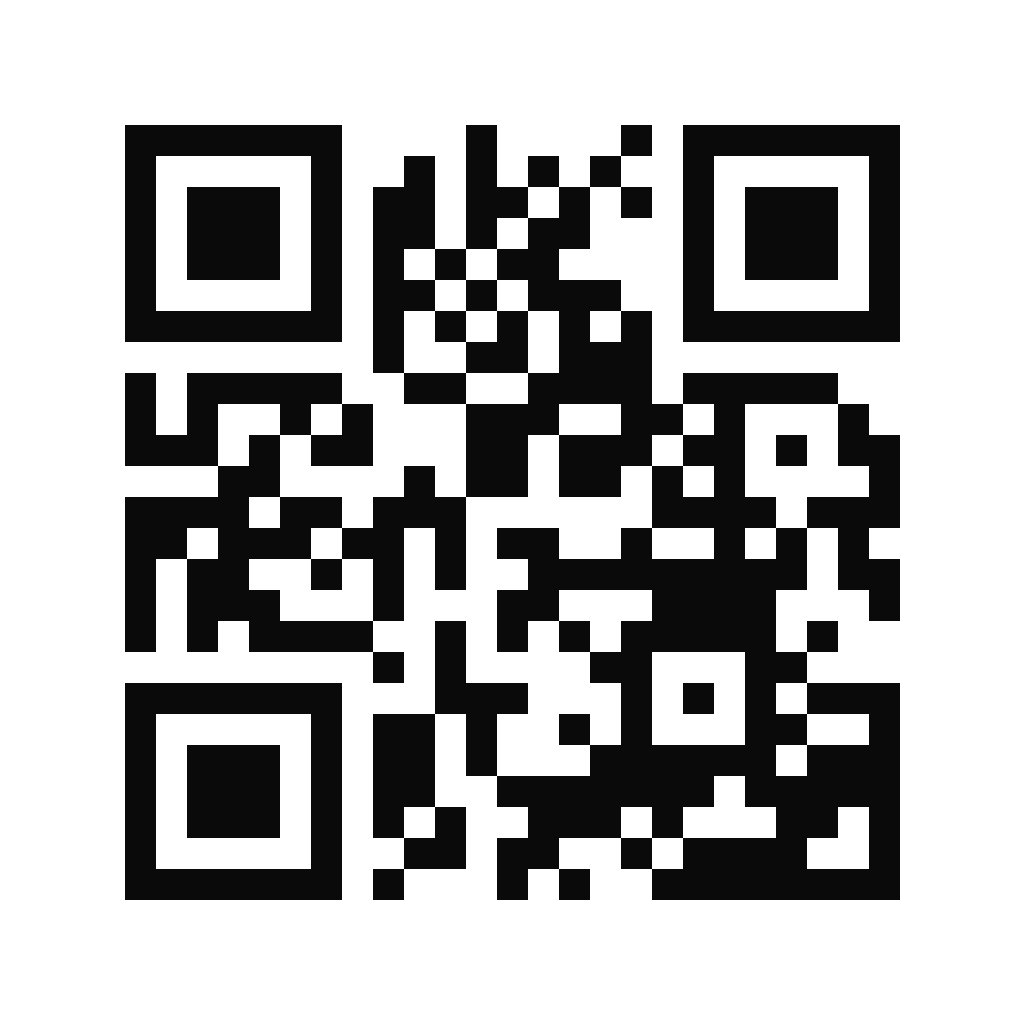
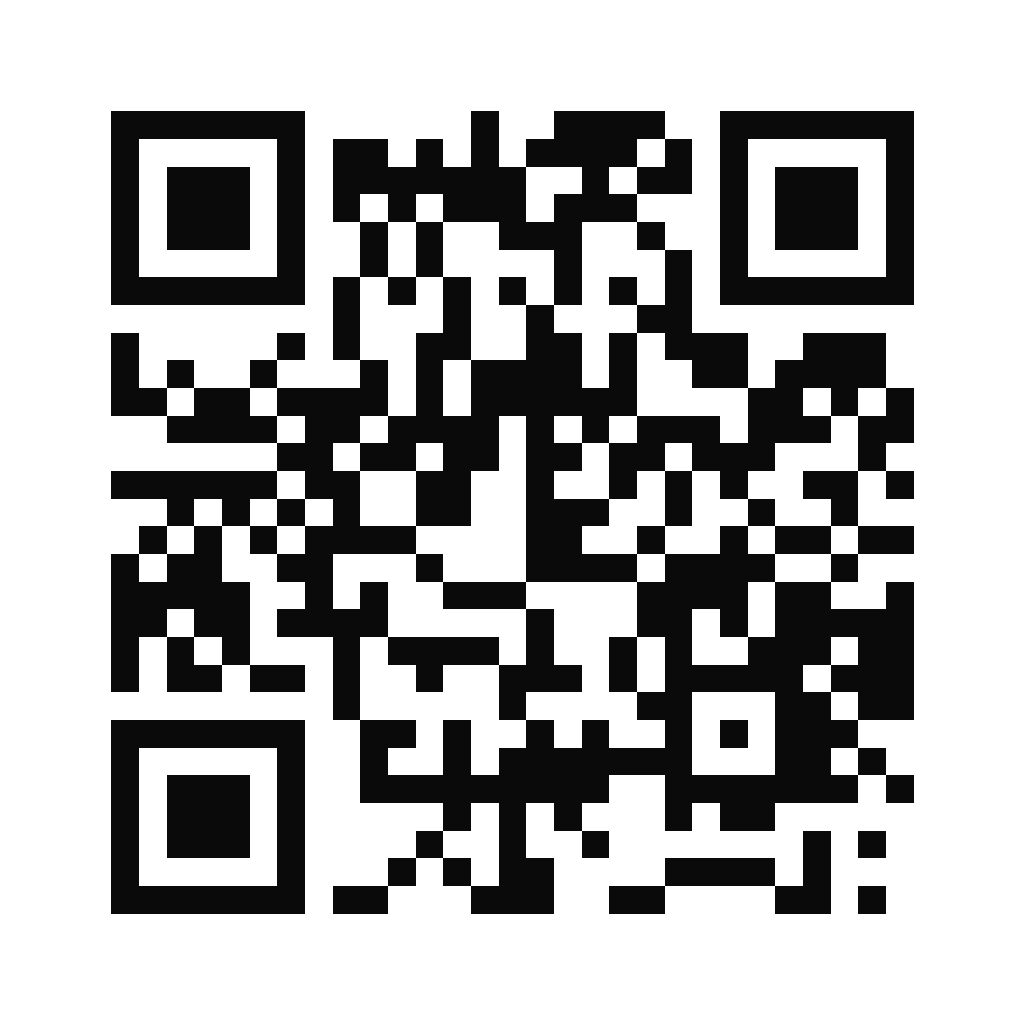
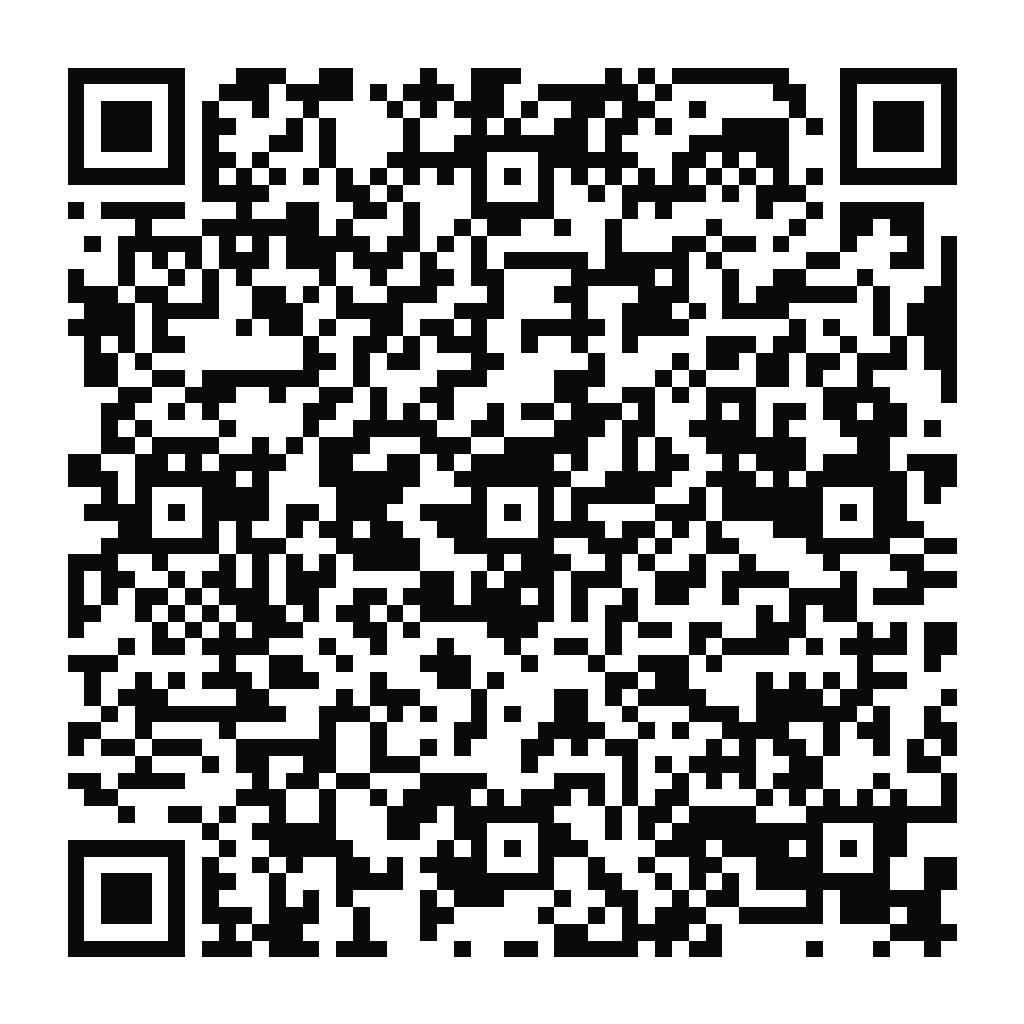
6 more sample types below, each with its raw payload. Or make your own here.






Sample codes
Sample QR Codes to Scan and Test
Grab a real sample QR code for the exact type you're building. Every one below scans to a safe destination we host or a harmless demo, shows you the raw data it encodes, and downloads as a clean SVG or PNG. Point your phone camera at any of them to see exactly what a scanner reads. Need a code for a design comp rather than a test? The placeholder QR codes for mockups are ready-made for that.
Website URL
URL · static or dynamicOpens useqrkit.com. Check it loads in under two seconds.
Raw payload
https://useqrkit.com
Wi-Fi
StaticJoins a demo network. Test that your phone connects without retyping the password.
Raw payload
WIFI:T:WPA;S:QRKIT-Guest;P:sample1234;;
vCard (contact card)
Static sampleSaves a sample contact to your phone. On QRKIT, vCards are hosted digital cards you can update — check every field lands correctly.
Raw payload
BEGIN:VCARD
VERSION:3.0
N:Rivera;Jamie;;;
FN:Jamie Rivera
ORG:QRKIT (Demo)
TITLE:Sample Contact
TEL;TYPE=CELL:+14155550123
EMAIL:[email protected]
URL:https://useqrkit.com
END:VCARD
Opens a pre-filled draft. Confirm the recipient, subject, and body are right.
Raw payload
mailto:[email protected]?subject=QR%20code%20test&body=This%20is%20a%20sample%20email%20QR%20code%20from%20QRKIT.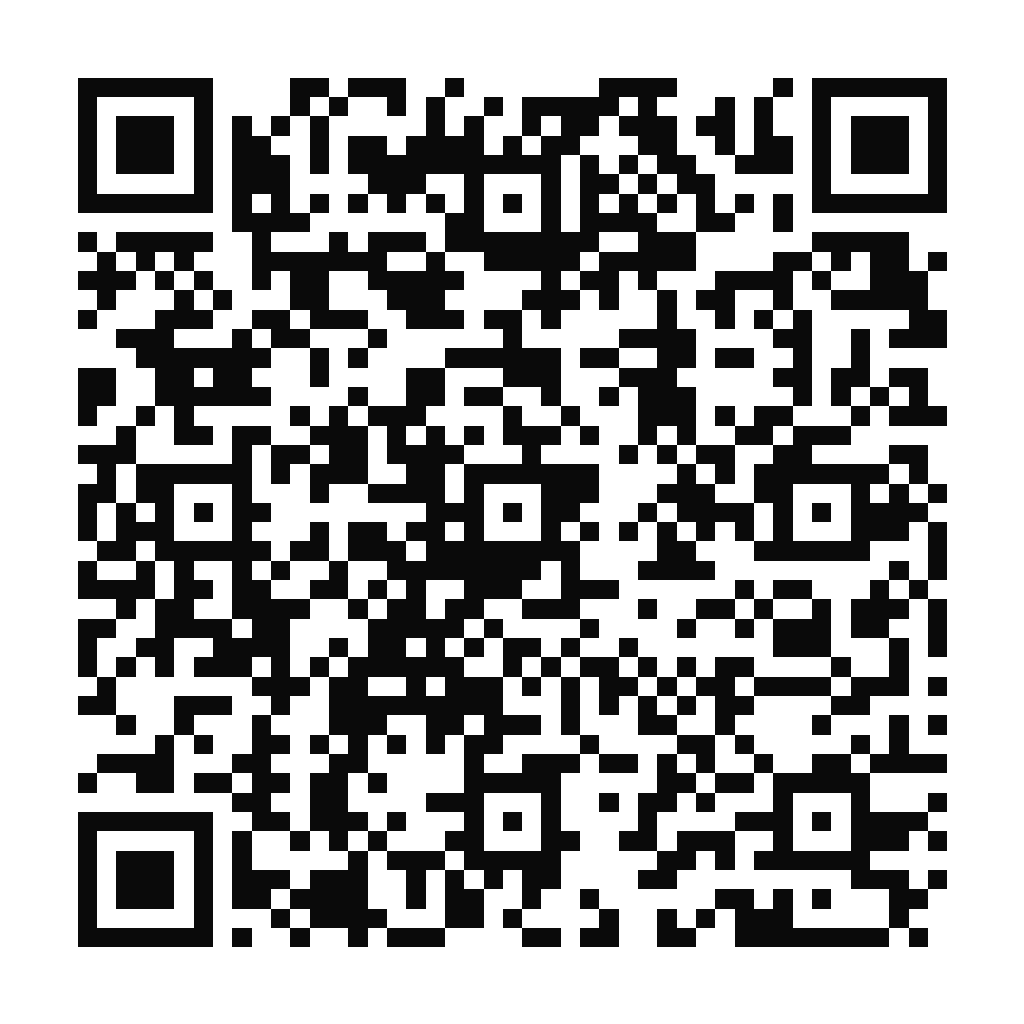
Plain text
StaticShows a message on screen. Check the full text decodes with no cut-off characters.
Raw payload
Sample QR code from QRKIT. This is plain text, not a link.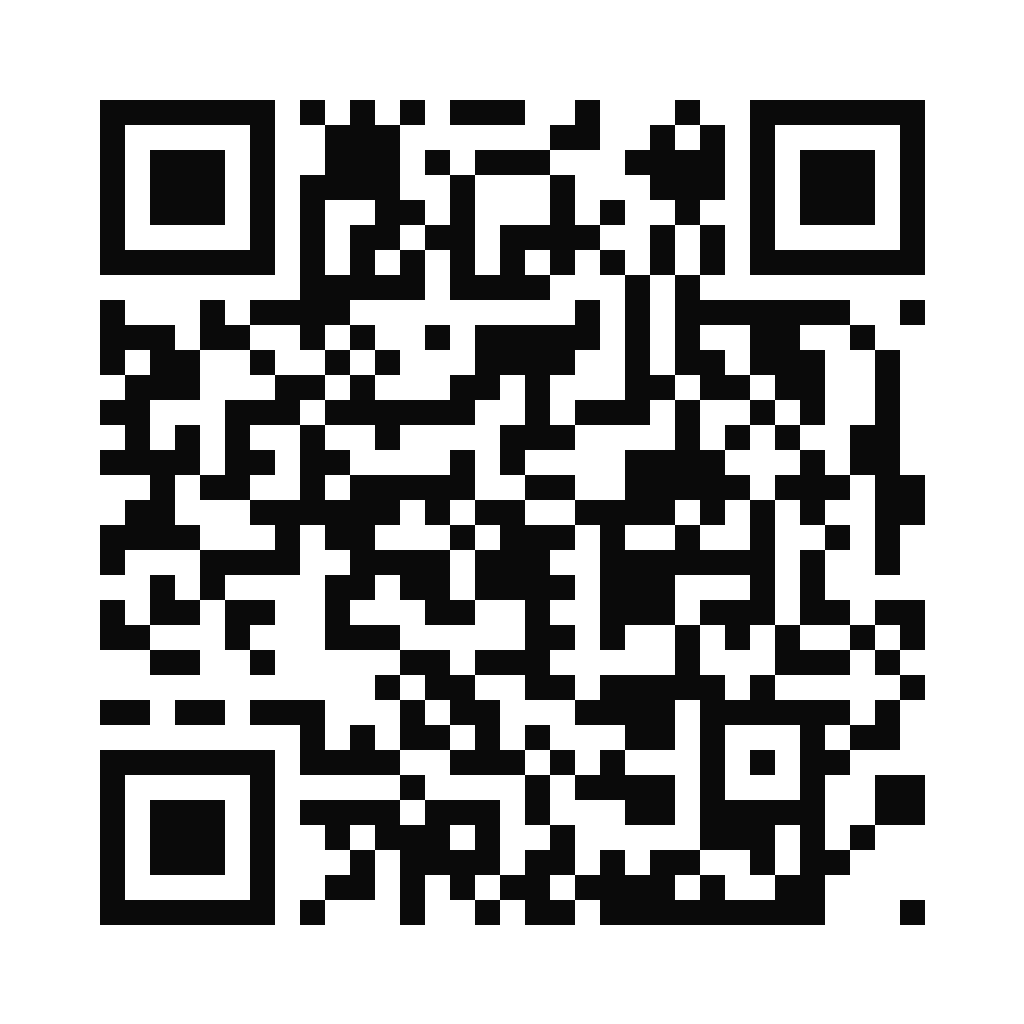
GS1 Digital Link
StaticEncodes a GTIN, batch, and expiry in one web URL — a phone opens the link, and a 2D-ready retail scanner reads the product number from the URL path.
Raw payload
https://id.gs1.org/01/09506000134352/10/ABC123?17=270601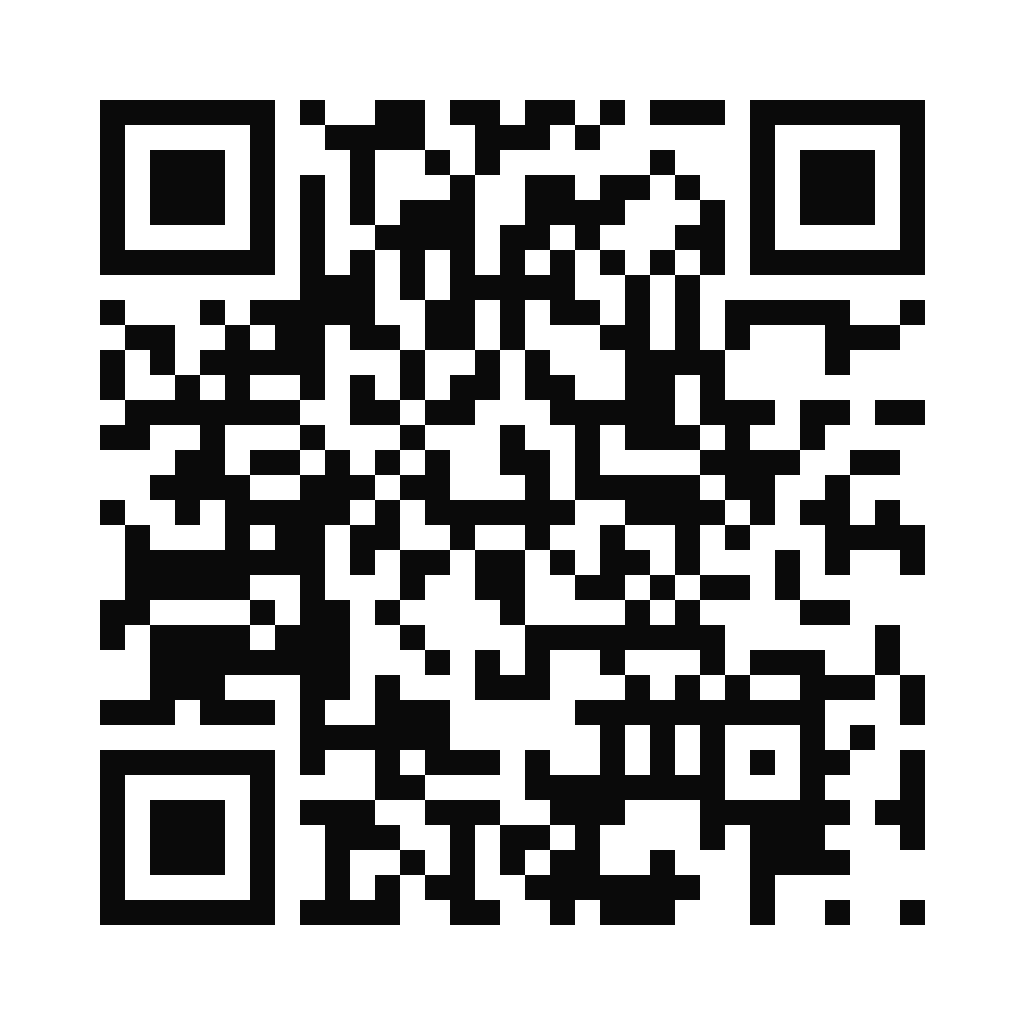
SMS
StaticPre-fills a text to a fictional 555 number. Test that your messaging app opens ready to send.
Raw payload
SMSTO:+14155550123:Sample text from a QR code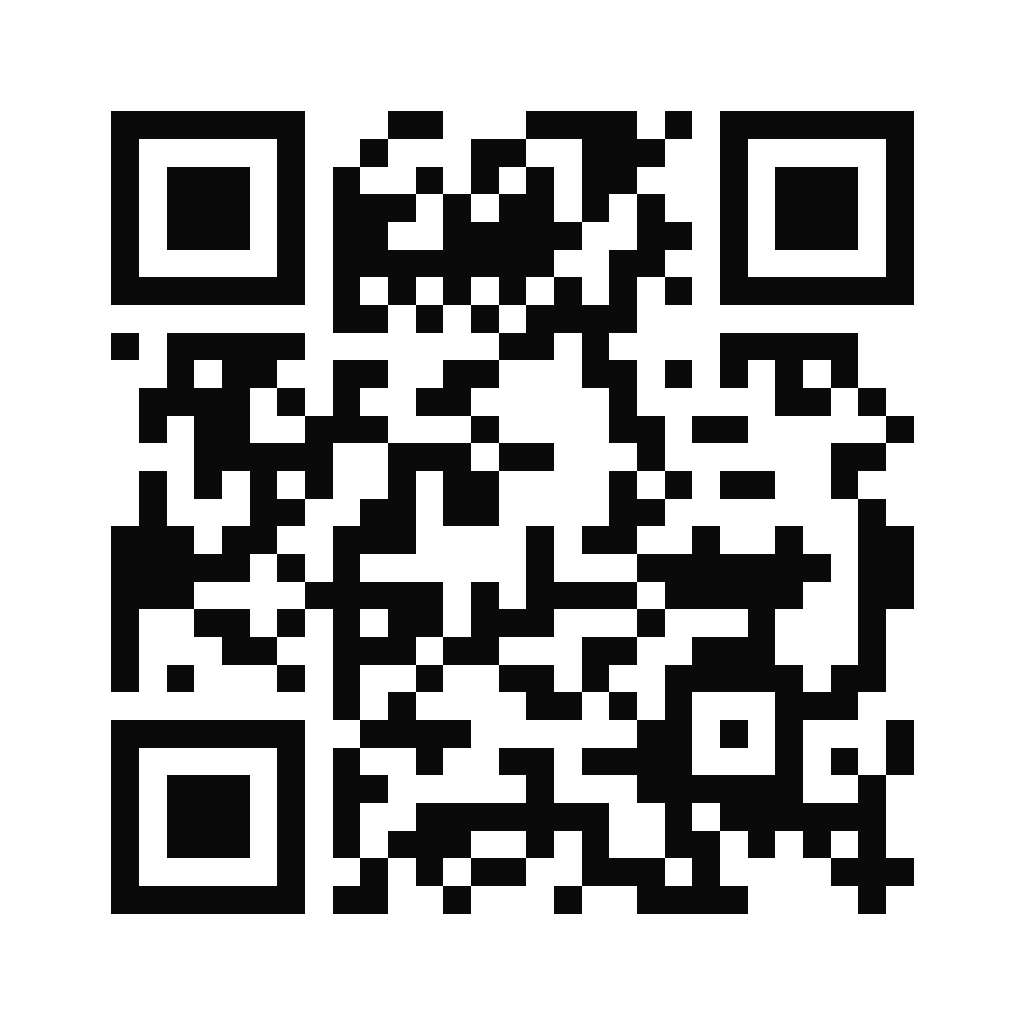
Phone call
StaticDials a fictional 555 number. Confirm your dialer opens with the number pre-typed.
Raw payload
tel:+14155550123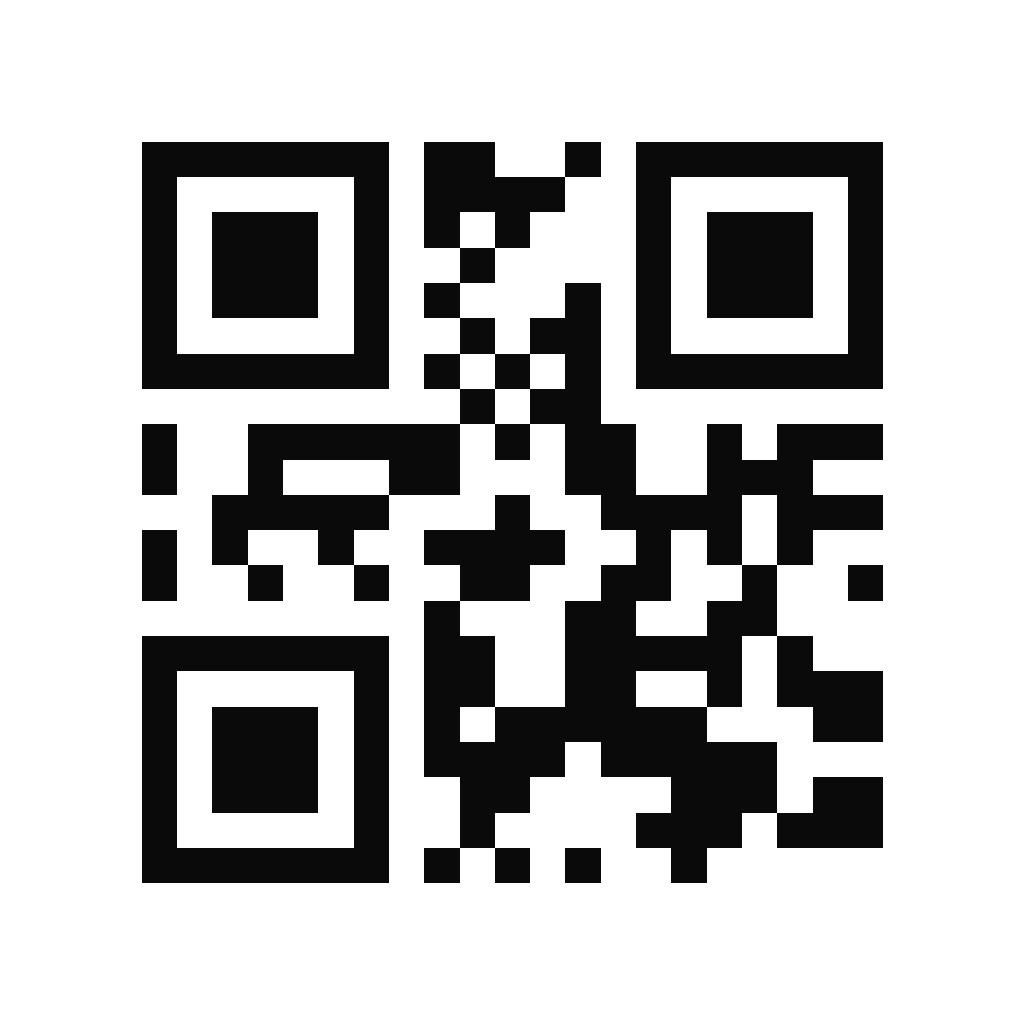
Calendar event
StaticAdds a sample event. Check it lands on the right day in your calendar.
Raw payload
BEGIN:VCALENDAR
VERSION:2.0
PRODID:-//QRKit//Event QR//EN
BEGIN:VEVENT
SUMMARY:QRKIT Sample Event
LOCATION:Online
DTSTART:20260901T170000Z
DTEND:20260901T180000Z
END:VEVENT
END:VCALENDAR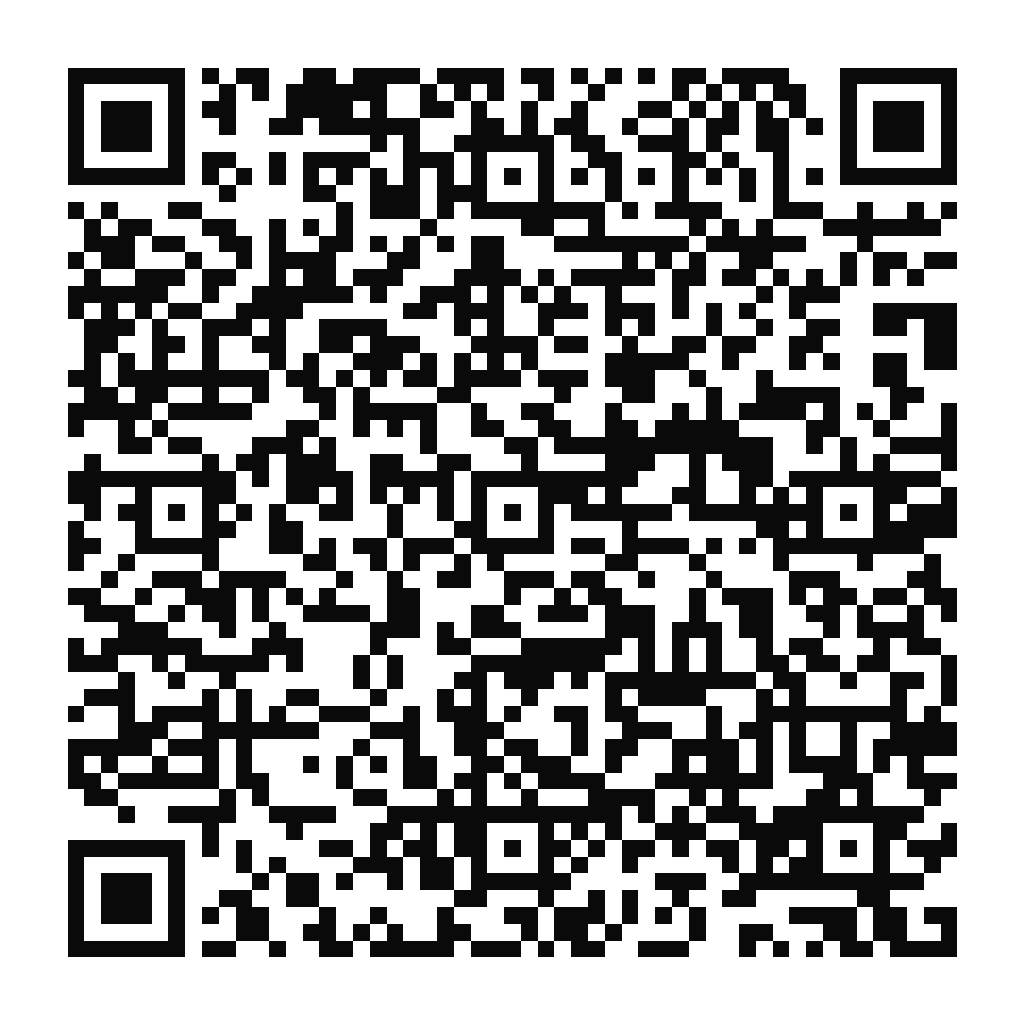
Every sample here is a raw code you can scan directly — the tag shows how QRKIT builds that type. Some types (vCard, files, app links) ship as hosted dynamic codes, so the live version points to a short link instead of raw data.
QR code test
How to Test a QR Code: Step by Step
Run this checklist before you print or publish. It folds in the checks the pros use, with the benchmarks that actually decide whether a code scans in the real world.
- 1
Scan from several distances
Use the 10:1 rule — a code needs about 1 inch of width for every 10 inches of scan distance. Keep it at least ~2 cm (0.8 in) on print, and size up for anything read from a distance.
- 2
Test on both iOS and Android
Open the native camera app on an iPhone and an Android phone. Both should detect the code without a third-party app.
- 3
Change the lighting
Try bright light, low light, and an angle that throws glare across the code. Matte surfaces read more reliably than glossy ones.
- 4
Confirm the decoded content is exact
Read the payload the scanner shows and compare it character for character — one wrong digit in a phone number or URL sends people nowhere.
- 5
Check it loads in under two seconds
For URL and hosted codes, the destination should open fast. A slow page loses the scan even when the code reads perfectly.
- 6
Keep customization moderate
Heavy colors, low contrast, or a large logo can break the scan. Hold strong dark-on-light contrast and leave the quiet zone clear.
- 7
Pick the right format
Download SVG for anything printed or resized — it stays sharp at any size. Use PNG for screens and quick digital placements.
- 8
Print a test at final size
Before a big run, print one code at the exact dimensions you'll use and scan it off the real material. Ink bleed and paper stock can change the result.
- 9
Double-check static codes
A static code bakes the data in and can't be edited or re-pointed after printing. Verify every character before you commit to a print run.
Not sure your phone is scanning right? See the full guide on how to scan a QR code on any device, or decode a test image with the free online QR code scanner.
Why codes fail
Quiet Zone & Error Correction
Two things quietly decide whether a code scans, and most guides skip both. The quiet zone is the blank margin around a QR code — scanners need it to find where the code starts and stops. The standard is four modules (four “dots”) of clear space on all four sides. Crowd the code with text or a tight border and many phones simply won't lock onto it. For exact dimensions, see the QR code size guide.
| Level | Recovers | Best for |
|---|---|---|
| L | ~7% | Clean digital screens where nothing covers the code and it stays sharp. |
| M | ~15% | The default for most print — a solid balance of data density and durability. |
| Q | ~25% | Codes that pick up light wear, or carry a small logo. |
| H | ~30% | When a logo covers part of the code, or it'll get dirty, wet, or used outdoors. |
Logo vs. scannability: a logo in the center looks sharp, but every covered module eats into the code's readable data. Keep it within about 30% of the code, hold high dark-on-light contrast, and add a logo only when needed — QRKIT raises a code with a logo to Level H error correction, which recovers about 30% of the pattern, and sizes the logo to fit that budget.
Troubleshooting
Why a QR Code Won't Scan
Most scan failures come down to a handful of causes. Here's each one with the fix — for a deeper walkthrough, see QR code not working.
Wrong or broken destination
The code scans but lands on an error or the wrong page. Re-check the payload for typos, then regenerate from the corrected data.
Low contrast or inverted colors
A light-on-dark or pale code confuses scanners. Use a dark code on a light background and raise the contrast.
Too small or blurry
The printed code is under ~2 cm or looks pixelated. Enlarge it and export as SVG so it stays crisp at any size.
No quiet zone
Text or a border crowds the code. Leave about four modules of clear margin on all four sides.
Over-customized
A big logo or heavy styling covers too much data. Shrink the logo to within ~30%, simplify the pattern, and raise error correction to Q or H.
Destination down or slow
The code reads but the page hangs. Confirm the URL is live and loads in under two seconds before you print.
Every type
Every QR Code Type, With an Example
This page links to a working example and a full guide for every QR code type QRKIT makes. Pick your type to see how it's built and whether it's static or dynamic.
Static QR code
→Data baked into the pattern. Free, never expires, no account — but can't be edited or tracked after you create it.
Dynamic QR code
→Content hosted behind a short link you can edit later, and that records scans.
URL / website
→Send a scan to any web address. Static for a fixed link, or dynamic for an editable, trackable one.
Wi-Fi
→Share network access so guests connect without typing a password. Static — the credentials are encoded in the code.
vCard / digital business card
→Share your name, title, and contact details. QRKIT hosts it as an updatable digital card (dynamic), so it uses your free dynamic slot.
Open a pre-filled email draft with a set recipient and subject. Static — the details are baked in.
Plain text
→Show a short message on screen with no link required. Static — the words are encoded directly.
SMS
→Pre-fill a text message to a set number. Static — the number and wording are fixed once created.
Phone call
→Start a call to your number. A static code holding a tel: link — a quick dial, no tracking.
Calendar event
→Add an event to someone's calendar with the date, time, and title. Static — the event details are fixed.
Share a hosted PDF like a manual, brochure, or price list. Dynamic (hosted), so it uses your free dynamic slot.
File
→Share a downloadable file you upload, in the supported document and media formats. Dynamic (hosted).
Image
→Share a single hosted image, like a poster or photo. Dynamic (hosted), using your free dynamic slot.
Music & audio
→Make a music QR code, or share any hosted audio clip — an MP3 or WAV you upload. Dynamic (hosted).
Apple Music
→Turn a music.apple.com song, album, or playlist link into a QR code. Static or dynamic — it's an ordinary URL.
Video
→Share a hosted video clip you upload. Dynamic (hosted), served behind a short link.
App download
→Send iOS users to the App Store and Android users to Google Play from one code. Always dynamic (hosted).
Google Form
→Link straight to your live Google Form for surveys, sign-ups, or feedback. Static or dynamic, your choice.
Social media
→Point to one profile or a hub of all your social links. Static or dynamic — social codes support both.
Link page
→Host a simple page of multiple links behind one code. Dynamic — QRKIT's own link page, not a third-party service.
Location / maps
→Drop a pin to an address or coordinates so scanners get directions. Encodes a maps link — static or dynamic.
New to QR codes? Start with the difference between static and dynamic codes, browse every format in the QR code types guide, make your first one with the URL QR code generator, or see how common they've become in the latest QR code statistics. For a styled starting point rather than a plain black square, apply one of our QR code templates. For the classic print example, see the QR code business card guide. For a ready-made one you can download and scan right now, grab the rick roll QR code. Wondering whether every code is unique? See how many QR codes are possible. For examples from real campaigns, read 5 brands that won big with QR code campaigns.
QR Code Examples — Frequently Asked Questions
Get started
Build and Test Your Own QR Code
Use the free generator at the top of the page to build a code for any type, then scan it right here to confirm it works. You can design, test, and download a static code with no sign-up at all; a dynamic one takes a free account.