QR Code Templates — 15 Free Ready-Made Designs
Click a template and the whole look — pattern, corner eyes, colors, center logo, and caption frame — lands on your code at once. Every setting stays editable, and nothing is watermarked.

The gallery
All 15 QR Code Templates
Here is the whole gallery — 15 designs, not a vague “hundreds of templates” claim. Each one is a complete look: a body pattern, a corner-eye style, a color scheme, a center logo, and a frame around the code. Most are built around the destinations people actually link to, plus one neutral Scan Me design with no platform branding. A sixteenth tile in the tool is a reset: click it once to release the preset you applied, then a second time to strip the styling back to plain black and white.
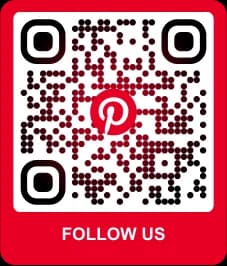
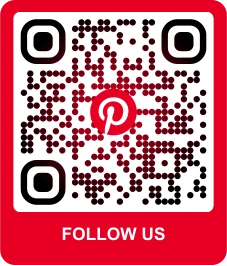
Dots body on a black-to-red radial gradient, Bubble eyes, solid red frame.
Google reviews
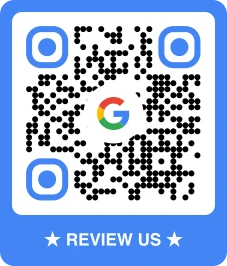
Dots body in solid black, Bubble eyes in Google blue, blue review frame.
X
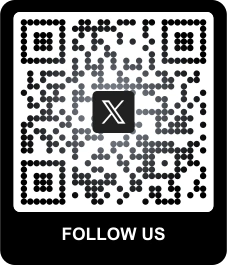
Dots body and Dotted eyes on a black-to-grey gradient, in a black frame.
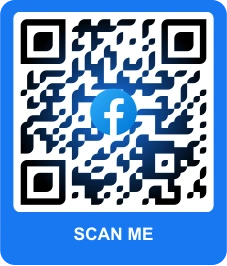
Elegant body and eyes on a black-to-blue gradient, in a Facebook-blue frame.
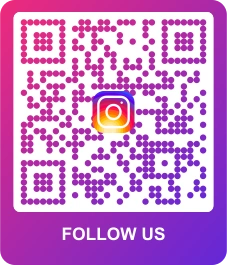
Dots body on a diagonal purple-to-pink gradient, with a matching gradient frame.
Snapchat
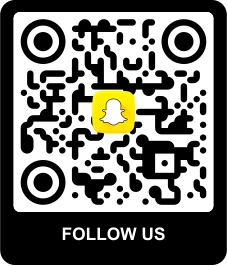
Bubble body with fully round Circle eyes, solid black, in a black frame.
TikTok
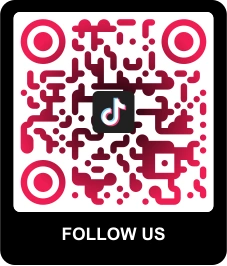
Bubble body with Circle eyes on a crimson-to-black gradient, black frame.
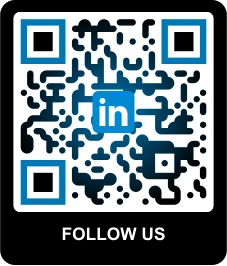
Bubble body on a black-to-blue gradient with square blue eyes, black frame.
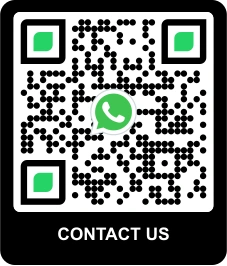
Dots body in solid black with Elegant eyes in WhatsApp green, black frame.
PayPal
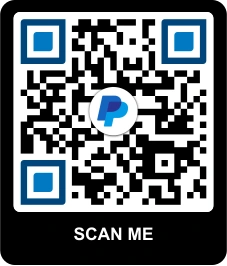
Classic square body with navy-and-blue corner eyes, in a black frame.
Scan Me (no branding)
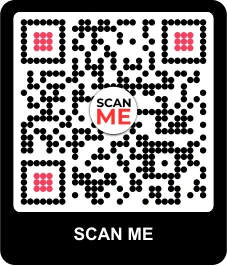
Dots body and Dotted eyes in black with a rose eye accent — the neutral option.
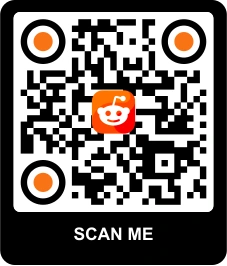
Classic square body with round orange Circle eyes on white, in a black frame.
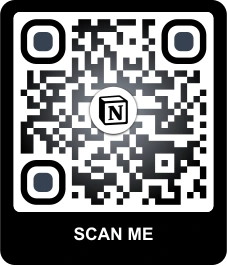
Notion
Classic body on a black-to-grey gradient with Bubble eyes, black frame.
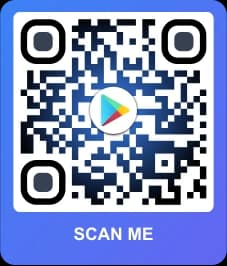
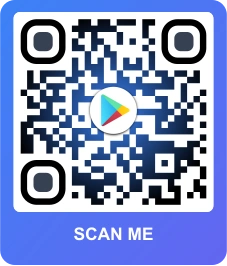
Google Play
Classic body on a black-to-blue gradient with Bubble eyes and a blue gradient frame.
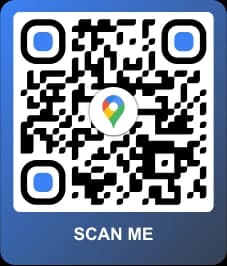
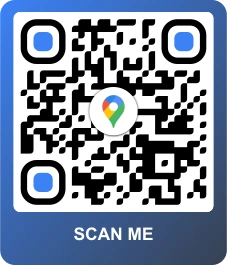
Google Maps
Sharp body in black with blue Bubble eyes, in a blue-to-grey gradient frame.
About the caption: the words in the band under each code are yours to write. Some templates arrive with one already typed — “FOLLOW US” on most of the social designs, “CONTACT US” on WhatsApp, “★ REVIEW US ★” on the Google reviews one. The rest apply the frame with the band left blank, even where the thumbnail above shows placeholder text in it. Either way, open the Frame tab after applying a template and type whatever the code should say, in the font and color you want.
What you’re applying
What a QR Code Template Actually Changes
A template is a saved bundle of design values, nothing more. Clicking one writes five groups of settings onto your code in a single move — the same five you could set by hand, just already coordinated. It does not touch your content, so the link, vCard, or WiFi details you entered stay exactly as they were.
Body Pattern
The shape of every data module. Six styles: Classic squares, Bubble, Smooth, Sharp, Elegant, and Dots. This is the single biggest visual change in any template.
Corner Eyes
The three position markers get their own shape — Classic, Circle, Bubble, Smooth, Elegant, or Dotted — and, in most templates, their own color, which is how a design picks up a brand accent without recoloring the whole code.
Colors & Gradients
Foreground and background, as a solid fill or a linear or radial gradient. Several templates use a gradient body with a matching gradient frame.
Center Logo
Every template drops a logo into the middle of the code. Keep the template's choice, pick a different one from the built-in set, or upload your own.
Caption Frame
A frame wraps the code with a band for your call to action, in the font and color you choose — solid or gradient. The text itself is always yours to type.
Not Your Content
A template never rewrites what the code encodes. Apply one before or after you enter your data — the order doesn't matter, and switching templates won't lose your input.
Want to build a look from scratch instead of starting from a preset? The custom QR code generator walks through every one of these controls individually.
How it works
How to Use a QR Code Template in 4 Steps
Designing takes no account at all, and neither does downloading a static code — a dynamic code takes a free account.
Step 1
Enter What the Code Should Point To
Pick your content type — a link, vCard, WiFi network, plain text, email, SMS, or calendar event — and enter the details. Templates carry design only, so this choice is independent of the look you pick next.
Step 2
Open the Templates Tab and Click a Design
The Templates tab holds all 15 designs. Clicking one applies its pattern, corner eyes, colors, center logo, and frame at once, and the preview redraws immediately.
Step 3
Adjust Anything You Want
Nothing is locked. Change the body pattern, swap the logo, retype the caption in the frame, or replace a solid color with a gradient. To start over, click the reset tile twice: the first click releases the preset, the second strips the design back to a plain black-and-white code.
Step 4
Download PNG, SVG, or PDF
Export a PNG for screens, or the SVG for print, where it stays sharp at any size. There's no watermark on any plan. PNG is free (a static code needs no account); SVG and PDF come with any paid plan.
On print files: the SVG is the true vector export in the generator — the PDF it produces is a 1,024-pixel image placed on an A4 sheet. Once a code is saved to your dashboard, re-downloading it there gives you genuine vector PDF and EPS. Free accounts cap PNG at 1,024 pixels and do not include the vector formats — SVG, PDF and EPS come with any paid plan, and none of them is resolution-capped. See the QR code size guide for print dimensions.
Your own templates
Save Your Own QR Code Template
Once you’ve built a look you want to reuse — your colors, your logo, your caption — a Save as template button appears next to the preview. Clicking it stores that design in a row of your own, headed “Your saved templates”, directly beneath the 15 built-in ones, ready to apply to the next code in a single click. It needs a free account, not a paid plan, and each saved template has a small delete button when you no longer want it.
Free account, not a paid plan
Saving a design from the generator is available as soon as you’re signed in. There’s no template quota to run into.
Built from your own design
The button shows up when you’re working on a design of your own rather than one of the presets — so hit the reset tile first if you’ve been experimenting on top of a gallery template. One click is enough here: it releases the preset without touching your design.
Reusable across a batch
Your saved templates also show up in bulk generation, where one pick styles every code in the upload. Bulk starts on Plus at $16/month billed annually.
Rolling out one look across a company’s codes? The branded QR code generator covers the brand-consistency side, and the QR code generator with logo goes deeper on getting your own mark into the center.
Keep it scannable
Editing a Template Without Breaking the Scan
The templates ship inside safe limits. It’s the changes made afterwards that decide whether a phone reads the code on the first try.
01
Keep the Contrast Strong
Dark pattern, light background. Recoloring a template into a pale foreground or a busy background is the fastest way to make a code that looks fine and scans badly.
02
Leave the Quiet Zone Alone
The clear margin around the pattern is how a scanner finds the code's edges. Don't crop into it or push artwork right up against the dots.
03
Keep a Center Logo Under ~30%
Error correction can recover the modules a logo covers, up to a point. Roughly 30% of the code is the practical ceiling — the built-in logos sit well inside it.
04
Watch Gradients at Small Sizes
A gradient that fades toward the background reads well large and poorly on a business card. If a template's light end looks washed out at your print size, tighten the range.
05
Test on Two Phones Before Printing
Scan the finished design with an iPhone and an Android camera. Thirty seconds here is cheaper than a reprint — and it's the only check that actually counts.
06
Use Vector for Print
Download the SVG (any paid plan) when the code will be printed, since it stays razor-sharp. Keep PNG for screens, apps, and social posts.
Universal compatibility. Every templated code uses standard error correction and complies with the ISO 18004 QR code standard, so it works with every major scanning app and smartphone camera. If a code misbehaves, our troubleshooting guide walks through the usual causes.
Where they help most
When a Template Beats Designing From Scratch
A preset is worth most when the code has to look intentional and you don’t have a designer’s afternoon to give it.
Follow-Us Codes
The platform templates already carry the right logo and colors, so an Instagram or TikTok code reads as that platform at a glance.
Review & Feedback Codes
The Google reviews template pairs the Google mark with a review-us band — a ready-made counter card for a storefront or reception desk.
Business Cards & Badges
A small, styled code looks deliberate next to your name. Pair a template with a vCard so a scan drops your details straight into a phone.
Packaging & Product Inserts
Packaging leaves little room for a plain black square. A colored, framed code fits the artwork rather than fighting it.
Stickers & Labels
Templates give a sheet of stickers a consistent look, and the same design can be reused across every run.
A Consistent Set of Codes
Save your own template once and every code you make afterwards matches — no rebuilding the same colors and logo each time.
Before you print
Templates Look the Same — Static and Dynamic Don’t Behave the Same
Any template applies to either kind of code. What differs is what happens after the file leaves your computer.
Static templated code
Encodes your data straight into the pattern — WiFi credentials, plain text, an email, an SMS, or a calendar event. It never expires, has no scan limit, and free accounts can make as many as they like. The trade-off is that it can’t be edited or tracked once it’s printed.
Dynamic templated code
Points at a short link you can repoint later, and it tracks scans. Links and vCards are dynamic by default (a vCard is published with Starter). A free account covers one dynamic code with 100 scans per month across the account — past that it stops redirecting until the monthly reset, so check your plan before a print run. Unlimited scans, 24 months of history, and advanced analytics start on Starter at $5/month billed annually.
Not sure which one you need? Compare all QR code types or check pricing.
QR Code Templates — Frequently Asked Questions
Get started
Pick a Template,
Make It Yours
All 15 designs are free, none of them is watermarked, and every setting stays editable after you click.
Templates are the fast path. For full control over every design element, use the custom QR code generator; to put your own mark in the middle, see the QR code generator with logo. Prefer a round look? Try the circle QR code generator, or start from creating a free QR code.