QR Code Generator for Flyers
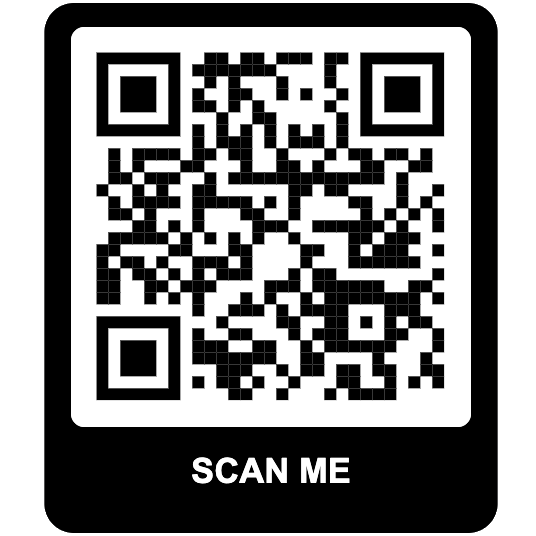
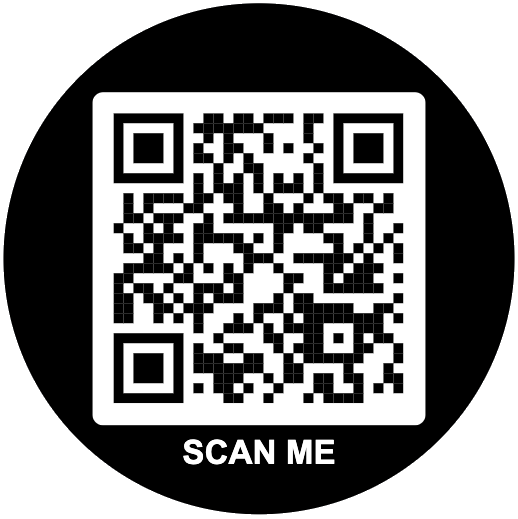
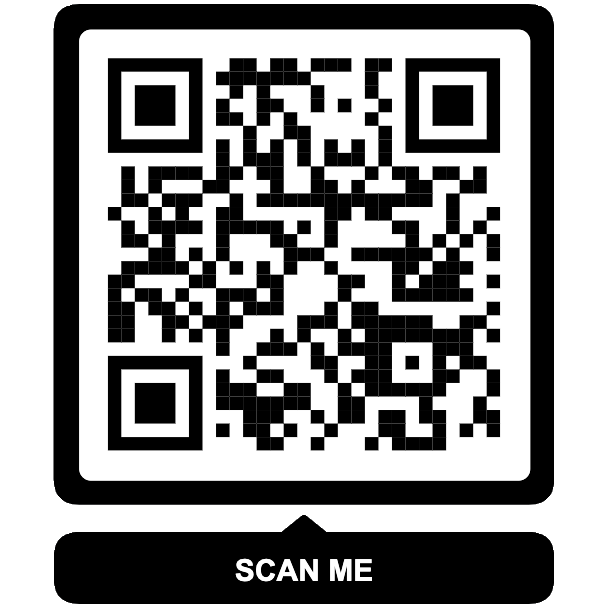
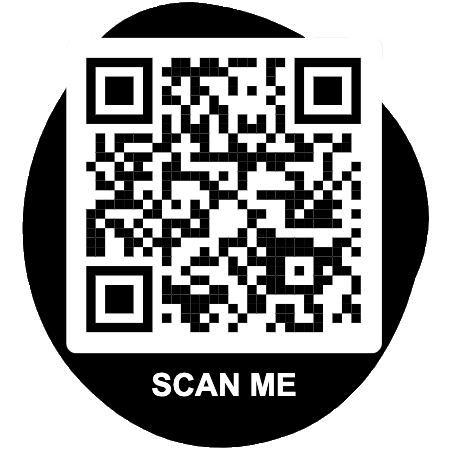
Make a QR code for your flyer with a Scan me frame, your logo and colors. Download it free, drop it into your flyer, and track scans if you want to know what worked.
Scan me framesPrint-ready PNGNo account neededNo watermark
STEP 1Enter the URL

Static QR · Can't be edited after download
Runs in your browser. Nothing to install.

4 steps
How to Put a QR Code on a Flyer
- Pick the page it opens. A sign-up form, event tickets, a menu, a coupon or a landing page. Make sure it loads fast on a phone.
- Make the code. Paste the link above, keep a frame with a short call to action (“Scan for 20% off” beats “Scan me”), and add your logo and colors.
- Place it in your design. Download the PNG and drop it into your flyer in Canva, Word or any design app.
- Test, then print. Print one copy, scan it with two phones, then print the batch.
Size and placement
What Size and Where on the Flyer
| Flyer | Scanned from | QR code size |
|---|---|---|
| Half-letter handout or postcard | In hand | 2 to 2.5 cm (0.8 to 1 in) |
| Letter-size flyer (8.5 x 11 in) | In hand or on a table | 2.5 to 3 cm (1 to 1.2 in) |
| Flyer on a bulletin board or window | About 1 m (3 ft) | 4 to 5 cm (1.6 to 2 in) |
| Tabloid flyer or small poster | 2 m (6 ft) or more | 8 cm (3 in) or larger |
- Put it bottom right or bottom center, next to the offer, where readers finish.
- Keep a plain, light background behind it and a clear margin around it.
- Stay away from folds, staples and the trim edge.
- Glossy paper reflects light; matte prints scan more reliably.
Printing a lot? Our guide on how to print QR codes covers resolution and file formats, and QR codes on posters covers bigger sizes.
Know what worked
Track Scans per Flyer Batch
Use a dynamic QR code and you see every scan: when, roughly where, and on which phone. Make one code per neighborhood, store or mailing to see which batch pulled people in, and fix the link if something changes after printing.
Want the full playbook, with examples by business type? Read our guide to QR codes on flyers.
Frequently Asked Questions
- How do I add a QR code to a flyer?
- Make the QR code first: paste your link above, add a frame with a call to action and download the PNG. Then place the image in your flyer in Canva, Word, Google Docs or any design app, test it with your phone, and print.
- What size should a QR code be on a flyer?
- At least 2 cm (0.8 in) wide, and about 2.5 to 3 cm (1 to 1.2 in) on a letter-size flyer people pick up. On a flyer pinned to a wall and read from a meter or more away, go to 4 cm (1.6 in) or larger. A simple rule: the scanning distance divided by 10.
- Where should the QR code go on a flyer?
- Bottom right or bottom center, next to the call to action, is where eyes end up after reading. Keep it on a plain light area, away from the fold and the edge of the page, with a clear margin around it.
- Can I track how many people scan my flyer?
- Yes, with a dynamic QR code. You see the scan count, dates and rough locations, and you can make one code per neighborhood or batch to compare them. QRKit gives you 1 dynamic code on the Free plan.
- Can I change the link after the flyers are printed?
- Only if it is a dynamic QR code. A static code holds the link inside the pattern, so a typo or a changed page means reprinting. A dynamic code lets you fix or update the link anytime.
- Do you have flyer templates?
- QRKit makes the QR code itself, with frames like Scan me or Get tickets. For the flyer layout, drop the downloaded code into a flyer template in Canva, Word or Google Docs, or use our ready-made QR code templates for the code design.
Make the QR Code for Your Flyer
Free static codes with no account, or a dynamic code you can track and edit after printing.
Create a flyer QR code