
Thursday, June 6, 2025
How to Scan a QR Code from an Image (Screenshot, Photo, or File)
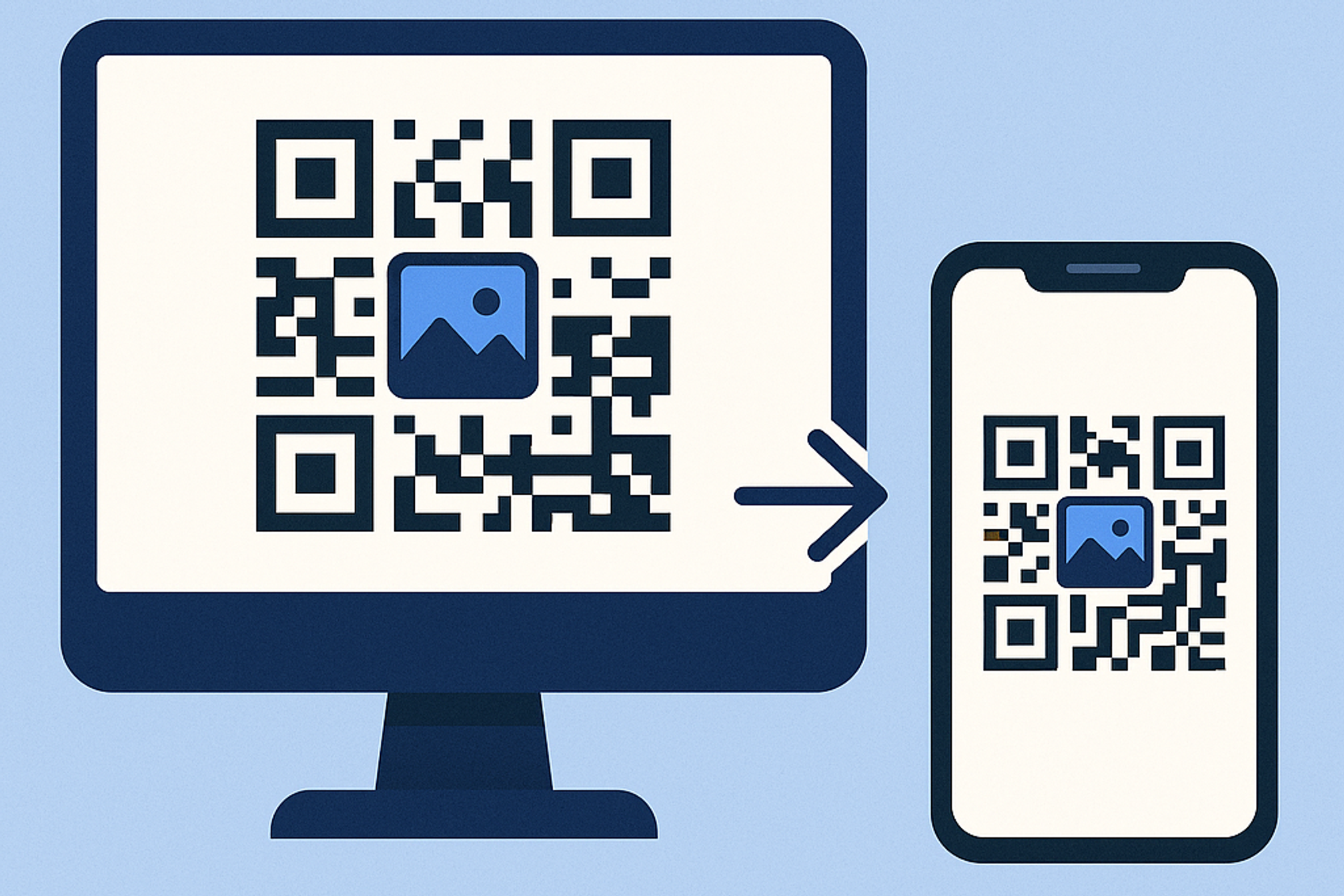
Someone just texted you a screenshot with a QR code, or maybe you saved a flyer from social media that has one embedded in the corner. The problem? You can't exactly point your phone camera at your own phone screen. So how do you scan a QR code that's already saved as an image?
Whether it's a screenshot, a photo from your camera roll, a downloaded PDF, or an image received via email, there are several easy ways to read QR codes directly from image files without needing a second device.
Why You Might Need to Scan a QR Code from an Image
There are more situations than you'd think where scanning a QR code from a saved image comes up. You receive a QR code via text message, email, or a messaging app. Someone shares a screenshot of a QR code in a group chat. You save a poster or flyer image from social media that contains a QR code. A PDF document includes a QR code you need to access. You take a screenshot of a QR code from a website to use later. A business card photo in your gallery has a QR code on it.
In all these cases, the QR code is trapped inside an image file on your device, and your regular camera scanner won't help because you can't point the camera at the screen you're looking at.
How to Scan a QR Code from an Image on iPhone
Using the built-in Photos app (iOS 16+): Open the image containing the QR code in your Photos app. If iOS detects a QR code, you'll see a Live Text icon (the small lines icon in the bottom-right corner). Tap it, then tap the QR code, and Safari will open the link automatically.
Using the Camera app with a second device: If you have access to an iPad or another phone, simply display the QR code image on one screen and scan it with the other device's camera.
Using Google Lens in the Google app: Open the Google app on your iPhone. Tap the camera icon in the search bar. Select the image from your photo library. Google Lens will detect and read the QR code instantly.
How to Scan a QR Code from an Image on Android
Using Google Lens (recommended): Open Google Lens (available through Google Photos, Google Assistant, or the Google search widget). Tap the image icon to select a photo from your gallery. Point it at the QR code area in the image. The QR code content will appear as a clickable link or action.
Using Google Photos: Open the image in Google Photos. Tap the Lens icon at the bottom of the screen. Google Lens will automatically detect the QR code and show you the link or content.
Using Samsung's built-in scanner (Samsung devices): Open the image in your Gallery app. Tap "Scan QR code" if the option appears, or use Bixby Vision to detect the QR code.
How to Scan a QR Code from an Image on Desktop
Using Google Lens in Chrome: Right-click on any QR code image in Chrome. Select "Search image with Google Lens." The QR code content will be decoded and displayed.
Using a web-based QR code reader: Open a browser and go to a QR code reader website (search "online QR code reader"). Upload or drag and drop your image file. The tool will decode the QR code and display the result.
Using browser extensions: Install a QR code reader extension for Chrome, Firefox, or Edge. Most extensions let you right-click on images or upload screenshots to decode QR codes directly in your browser.
Troubleshooting: What to Do When Scanning Fails
Sometimes QR codes in images don't scan properly. Here are the most common issues and how to fix them.
The image is too blurry or low resolution. QR codes need a certain level of clarity to be read. Try to get a higher-resolution version of the image, or zoom in and take a screenshot of just the QR code portion to reduce noise around it.
The QR code is too small in the image. Crop the image so the QR code fills most of the frame. Most scanning tools work better when the QR code is prominent rather than a tiny element in a larger photo.
The image has poor contrast. QR codes rely on the contrast between dark and light modules. If the image has been filtered, faded, or printed on a colored background, try adjusting the brightness and contrast in your photo editor before scanning.
The QR code is partially cut off or damaged. QR codes have built-in error correction, so they can handle some damage. However, if too much of the code is missing (especially the three large squares in the corners), the scan will fail. Look for a more complete version of the image.
The QR code is rotated or skewed. Most modern scanners handle rotation well, but extreme angles can cause issues. Straighten the image in your photo editor if needed.
Creating Your Own QR Codes? Use QRKit
If you're on the other side of this process and want to create QR codes that are easy to scan (even from screenshots and saved images), QRKit makes it simple. You can generate high-resolution QR codes with built-in error correction that scan reliably across all devices and formats.
Want to add your brand logo to a QR code? Check out our QR Code with Logo generator to create professional, branded QR codes that look great and scan perfectly, even when shared as images.
Frequently Asked Questions
Can I scan a QR code from a screenshot on my phone? Yes. On iPhone (iOS 16+), open the screenshot in Photos and use Live Text to detect the QR code. On Android, open the screenshot in Google Photos and tap the Lens icon. Both methods work without needing a second device.
Is there a way to scan a QR code without using the camera? Absolutely. Tools like Google Lens, browser extensions, and online QR code readers can all decode QR codes from image files without using your camera at all.
Why won't my phone scan the QR code in my photo? The most common reasons are: the image is too blurry, the QR code is too small, or the contrast is too low. Try cropping the image so the QR code fills more of the frame, and make sure the image is clear and well-lit.
Can I scan a QR code from a PDF? Yes. Take a screenshot of the QR code from the PDF, then use any of the methods described above. Alternatively, some desktop QR code readers can process PDF files directly.
Do online QR code scanners store my data? This varies by service. For sensitive QR codes (containing personal links or private information), use your phone's built-in tools (Google Lens, Apple Live Text) rather than uploading to third-party websites.


