
Thursday, February 2, 2024
How to Scan a QR Code from a Picture : A Complete Guide
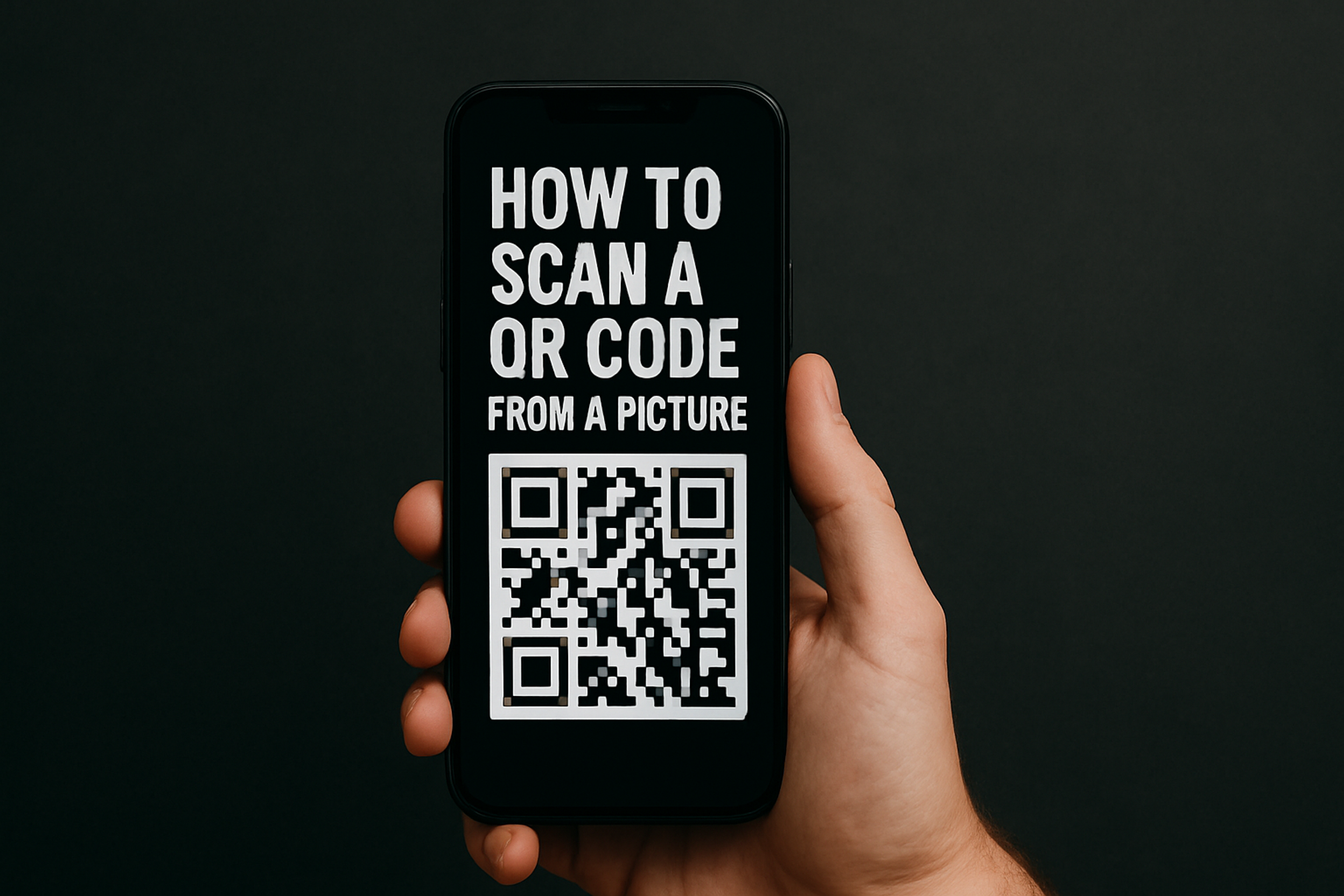
In today’s fast-paced, digital-first world, QR codes have become indispensable tools for businesses of all sizes. From restaurant menus to product packaging, these pixelated squares help bridge the physical and digital realms instantly. But what if you come across a QR code in a picture—perhaps in an email attachment, on your social media feed, or within a PDF? How to scan a QR code from a picture can be tricky if you’re not familiar with the right tools and techniques. In this post, we'll walk you through everything you need to know to scan a QR code directly from an image, ensuring you never miss a valuable link again.
4 Easy Ways to Scan a QR Code From a Picture
1. Use Your Smartphone’s Built‑In Scanner
iOS (iPhone & iPad)
Save the image to Photos.
Open Photos, tap the image, then press‑and‑hold on the QR code.
A yellow frame appears; tap the pop‑up to open the link.
Android (Google Camera)
Save the file to your gallery.
Open Camera > Modes > QR Code (name may vary by brand).
Tap the Import or Gallery icon (often a small square) and select the picture.
Tip: If your default camera app hides the import button, use Google Lens (see next section).
2. Scan with Google Lens (Android & iOS)
Install or open the Google app.
Tap the Lens icon (colorful camera).
Choose the image from your gallery.
Lens highlights the QR code and shows the link; tap to visit.
3. Try QR Kit’s Free Online QR Code Scanner
Need to scan on desktop or prefer not to install anything? Head to our QR Code Scanner.
Click Upload QR Code (drag‑and‑drop works too).
Our web app detects the QR code in milliseconds.
Click the result to open in a new tab or copy it to your clipboard.
Because the scanner runs in the browser, it works on Windows, macOS, Linux, iPadOS — basically anywhere you have a modern browser.
4. Desktop Solutions (Mac & Windows)
- macOS Preview: Open the picture, click the Markup toolbox, then select the QR Code icon (macOS Sonoma+).
- Windows 11 Camera: Choose the Barcode mode, click Import, and pick your file.
Why You Might Need to Scan a QR Code From a Picture
QR codes started in manufacturing, moved into marketing, and now appear everywhere. When you’re planning or auditing a campaign, you’ll often encounter QR codes in digital formats:
- Mock‑ups & proofs
- Screenshots from webinars or live streams
- Social media carousels
- Email signatures & invoices
Being able to scan directly from those images speeds up approvals, ensures the destination URL is correct, and — most important — keeps that customer journey friction‑free.
What to Do When a QR Code Won’t Scan
- Blurry or pixelated? Ask the sender for a higher‑resolution asset.
- Damaged or partially cropped? Restore the full code; the finder pattern (three big squares) must be intact.
- Expired or disabled? If it’s a static QR, you’re out of luck. If it’s dynamic, update the destination in your dashboard — no reprint needed.
The Marketing Angle — Turn Static Images into Dynamic Engagement
Scanning is only half the story. As a marketer or small‑business owner, you care about:
- Analytics: Where are scans coming from? What’s the conversion rate?
- Flexibility: Need to change the destination post‑launch?
Real‑World Example: Restaurant Menu Update
Problem: A café printed 5,000 table tents with a QR linking to their PDF menu. Prices changed.
Solution: Because the QR was dynamic, the owner simply swapped the PDF in QR Kit. Tableside guests always see the latest menu — reducing waste and customer frustration.
Frequently Asked Questions
Is scanning from a picture secure?
As secure as scanning from paper.
Do dynamic QR codes look different?
No. The dynamic part lives on the server. Your design stays sleek; only the underlying redirect changes.
Will Apple or Android block my code if I edit it?
No, dynamic redirects are handled before the phone’s browser loads the page. There’s no app‑store approval involved.
Can I brand my code and still make it dynamic?
Absolutely. QR Kit lets you add logos, colors, while keeping all dynamic features intact.
Whether you’re testing a campaign proof, vetting a supplier’s packaging, or simply curious about that QR you spotted in a webinar screenshot, knowing how to scan a QR code from a picture keeps your workflow fast and your data accurate.
Ready to take the next step? Create your first dynamic QR code with QR Kit —free in under 60 seconds. Enjoy unlimited scans and instant, real‑time analytics to track every engagement.


